
主题
动画效果指南 (Animations)
隐式动画 (Implicit animations)
使用隐式动画,你可以通过设置目标值来为控件的属性设置动画;每当该目标值发生变化时,控件就会自动为该属性执行从旧值到新值的动画过渡。
动画会在给定的**时间(duration)**内,在旧值和新值之间产生平滑的插值。
默认情况下,动画是以线性(linearly)方式递增的,不过也可以向动画应用特定的曲线(curve),从而根据所提供的曲线来改变动画的变化速率。例如,AnimationCurve.EASE_OUT_CUBIC 曲线在动画开始时会快速增加数值,然后逐渐减速,直到达到目标值:
LayoutControl(及其子类)提供了许多 animate_{something} 属性(如下所述),用于启用其外观的隐式动画:
animate_opacityanimate_rotationanimate_scaleanimate_offsetanimate_positionanimate(仅限Container)
animate_* 属性可以被设置为以下值之一:
Animation实例:允许你自定义动画的播放时长和插值曲线。例如animate_rotation=Animation(duration=300, curve=AnimationCurve.BOUNCE_OUT)。关于所有可选的插值曲线值,可以参考 Flutter 动画曲线文档。默认值为AnimationCurve.LINEAR。- 整数(
int)值:以指定的毫秒数为播放时长,启用AnimationCurve.LINEAR(线性)曲线的动画。 - 布尔(
bool)值:设置为True时,以 1000 毫秒为播放时长,启用AnimationCurve.LINEAR曲线的动画。
不透明度动画 (Opacity animation)
将控件的 animate_opacity 属性设置为 True、数字或 Animation 类的实例,可以启用 Control.opacity 不透明度属性的隐式动画。
提示
你可以在这里在线尝试。
python
import flet as ft


def main(page: ft.Page):
    def animate_opacity(e: ft.Event[ft.Button]):
        container.opacity = 0 if container.opacity == 1 else 1
        container.update()

    page.add(
        ft.SafeArea(
            content=ft.Column(
                controls=[
                    container := ft.Container(
                        width=150,
                        height=150,
                        bgcolor=ft.Colors.BLUE,
                        border_radius=10,
                        animate_opacity=300,
                    ),
                    ft.Button(
                        content="Animate opacity",
                        on_click=animate_opacity,
                    ),
                ],
            ),
        )
    )


if __name__ == "__main__":
    ft.run(main)
旋转动画 (Rotation animation)
将控件的 animate_rotation 属性设置为 True、数字或 Animation 类的实例,可以启用 LayoutControl.rotate 旋转属性的隐式动画。
提示
你可以在这里在线尝试。
python
from math import pi

import flet as ft


def main(page: ft.Page):
    page.vertical_alignment = ft.MainAxisAlignment.CENTER
    page.horizontal_alignment = ft.CrossAxisAlignment.CENTER
    page.spacing = 30

    def animate(e: ft.Event[ft.Button]):
        container.rotate.angle += pi / 2
        container.update()

    page.add(
        ft.SafeArea(
            content=ft.Column(
                horizontal_alignment=ft.CrossAxisAlignment.CENTER,
                controls=[
                    container := ft.Container(
                        width=100,
                        height=70,
                        bgcolor=ft.Colors.BLUE,
                        border_radius=5,
                        rotate=ft.Rotate(angle=0, alignment=ft.Alignment.CENTER),
                        animate_rotation=ft.Animation(
                            duration=300,
                            curve=ft.AnimationCurve.BOUNCE_OUT,
                        ),
                    ),
                    ft.Button("Animate!", on_click=animate),
                ],
            ),
        )
    )


if __name__ == "__main__":
    ft.run(main)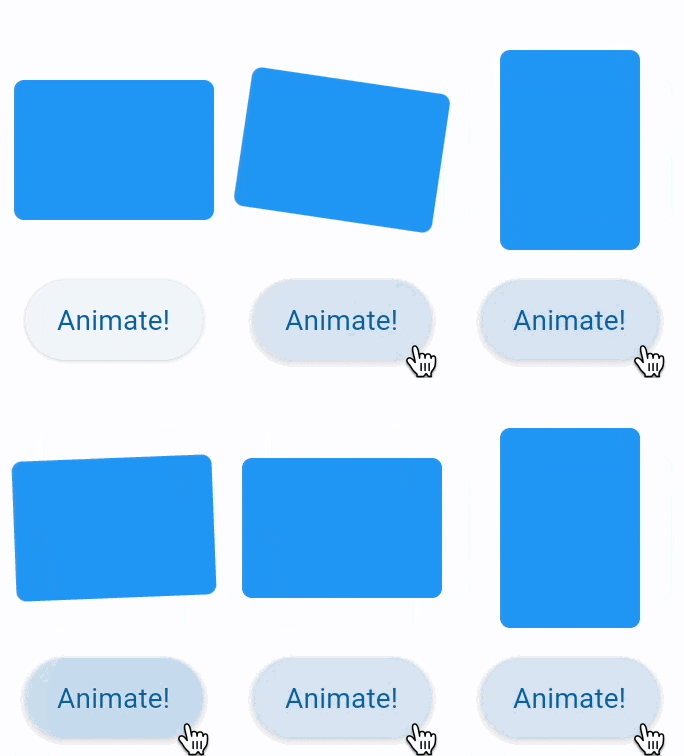
缩放动画 (Scale animation)
将控件的 animate_scale 属性设置为 True、数字或 Animation 类的实例,可以启用 LayoutControl.scale 缩放属性的隐式动画。
提示
你可以在这里在线尝试。
python
import flet as ft


def main(page: ft.Page):
    page.vertical_alignment = ft.MainAxisAlignment.CENTER
    page.horizontal_alignment = ft.CrossAxisAlignment.CENTER
    page.spacing = 30

    def animate(e: ft.Event[ft.Button]):
        container.scale = 2 if container.scale == 1 else 1
        container.update()

    page.add(
        ft.SafeArea(
            content=ft.Column(
                horizontal_alignment=ft.CrossAxisAlignment.CENTER,
                controls=[
                    container := ft.Container(
                        width=100,
                        height=100,
                        bgcolor=ft.Colors.BLUE,
                        border_radius=5,
                        scale=1,
                        animate_scale=ft.Animation(
                            duration=600,
                            curve=ft.AnimationCurve.BOUNCE_OUT,
                        ),
                    ),
                    ft.Button("Animate!", on_click=animate),
                ],
            ),
        )
    )


if __name__ == "__main__":
    ft.run(main)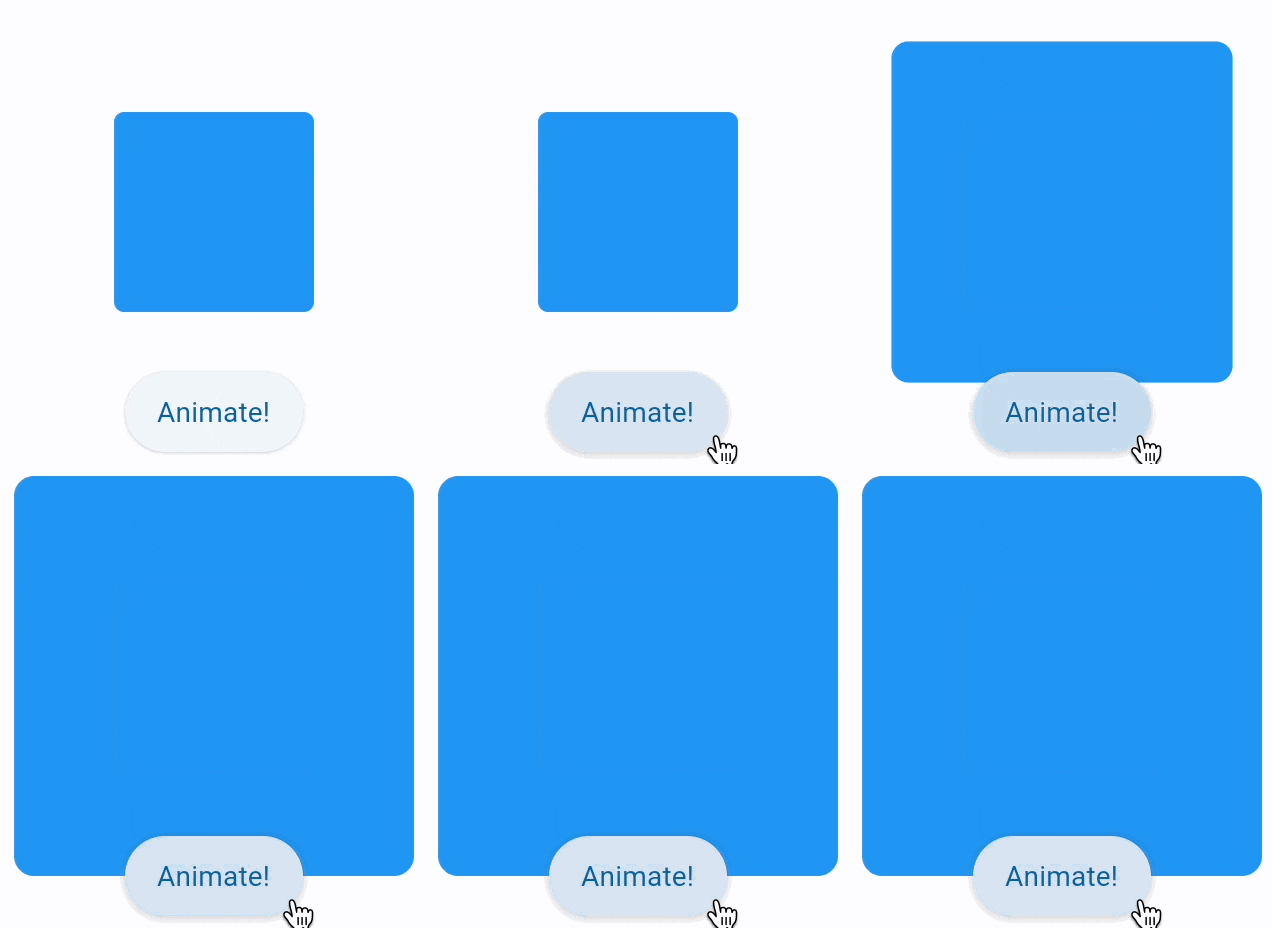
位移动画 (Offset animation)
将控件的 animate_offset 属性设置为 True、数字或 Animation 类的实例,可以启用 LayoutControl.offset 位移属性的隐式动画。
offset 属性是 Offset 类的实例,它指定了控件相对于自身大小的水平 x 和垂直 y 位移量。例如,Offset(-0.25, 0) 的位移将导致控件向左水平平移自身宽度的四分之一。
位移动画常用于各种滑入滑出的滑动效果:
提示
你可以在这里在线尝试。
python
import flet as ft


def main(page: ft.Page):
    def animate(e: ft.Event[ft.Button]):
        container.offset = ft.Offset(0, 0)
        container.update()

    page.add(
        ft.SafeArea(
            content=ft.Container(
                width=150,
                height=150,
                bgcolor=ft.Colors.BLUE,
                border_radius=ft.BorderRadius.all(10),
                offset=ft.Offset(x=-1.1, y=0),
                animate_offset=ft.Animation(
                    duration=600,
                    curve=ft.AnimationCurve.BOUNCE_OUT,
                ),
                    ),
                    ft.Button("Reveal!", on_click=animate),
                ],
            ),
        )
    )


if __name__ == "__main__":
    ft.run(main)
位置动画 (Position animation)
将控件的 animate_position 属性设置为 True、数字或 Animation 类的实例,可以启用以下 LayoutControl 定位属性的隐式动画:left、right、bottom、top。
注意
定位属性仅在控件为以下控件的子孙时才会生效:
Stack控件。Page.overlay列表。
提示
你可以在这里在线尝试。
python
import flet as ft


def main(page: ft.Page):
    def animate_container(e: ft.Event[ft.Button]):
        c1.top = 20
        c1.left = 200
        c2.top = 100
        c2.left = 40
        c3.top = 180
        c3.left = 100
        stack.update()

    page.add(
        ft.SafeArea(
            content=ft.Column(
                controls=[
                    stack := ft.Stack(
                        height=400,
                        controls=[
                            c1 := ft.Container(
                                width=50,
                                height=50,
                                bgcolor="red",
                                animate_position=1000,
                            ),
                            c2 := ft.Container(
                                width=50,
                                height=50,
                                bgcolor="green",
                                top=60,
                                left=0,
                                animate_position=500,
                            ),
                            c3 := ft.Container(
                                width=50,
                                height=50,
                                bgcolor="blue",
                                top=120,
                                left=0,
                                animate_position=1000,
                            ),
                        ],
                    ),
                    ft.Button("Animate!", on_click=animate_container),
                ],
            ),
        )
    )


if __name__ == "__main__":
    ft.run(main)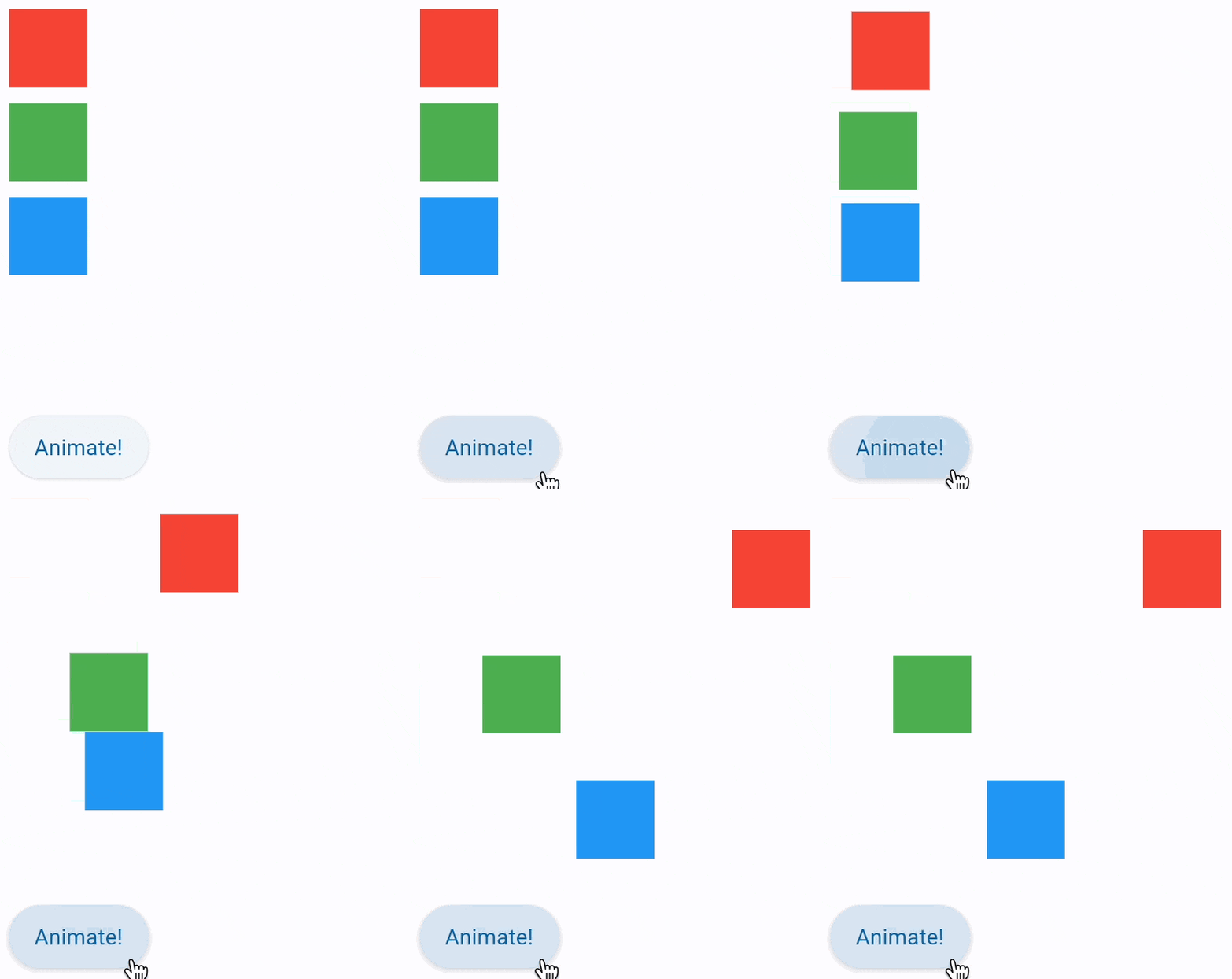
容器自身属性动画 (Animate Container)
将 Container.animate 设置为 AnimationValue,可以启用容器自身属性(如大小、背景色、边框样式、渐变色等)的隐式动画。
提示
你可以在这里在线尝试。
python
import flet as ft


def main(page: ft.Page):
    def animate_container(e: ft.Event[ft.Button]):
        container.width = 100 if container.width == 150 else 150
        container.height = 50 if container.height == 150 else 150
        container.bgcolor = (
            ft.Colors.BLUE if container.bgcolor == ft.Colors.RED else ft.Colors.RED
        )
        container.update()

    page.add(
        ft.SafeArea(
            content=ft.Column(
                controls=[
                    container := ft.Container(
                        width=150,
                        height=150,
                        bgcolor=ft.Colors.RED,
                        animate=ft.Animation(
                            duration=1000, curve=ft.AnimationCurve.BOUNCE_OUT
                        ),
                    ),
                    ft.Button("Animate container", on_click=animate_container),
                ]
            )
        ),
    )


if __name__ == "__main__":
    ft.run(main)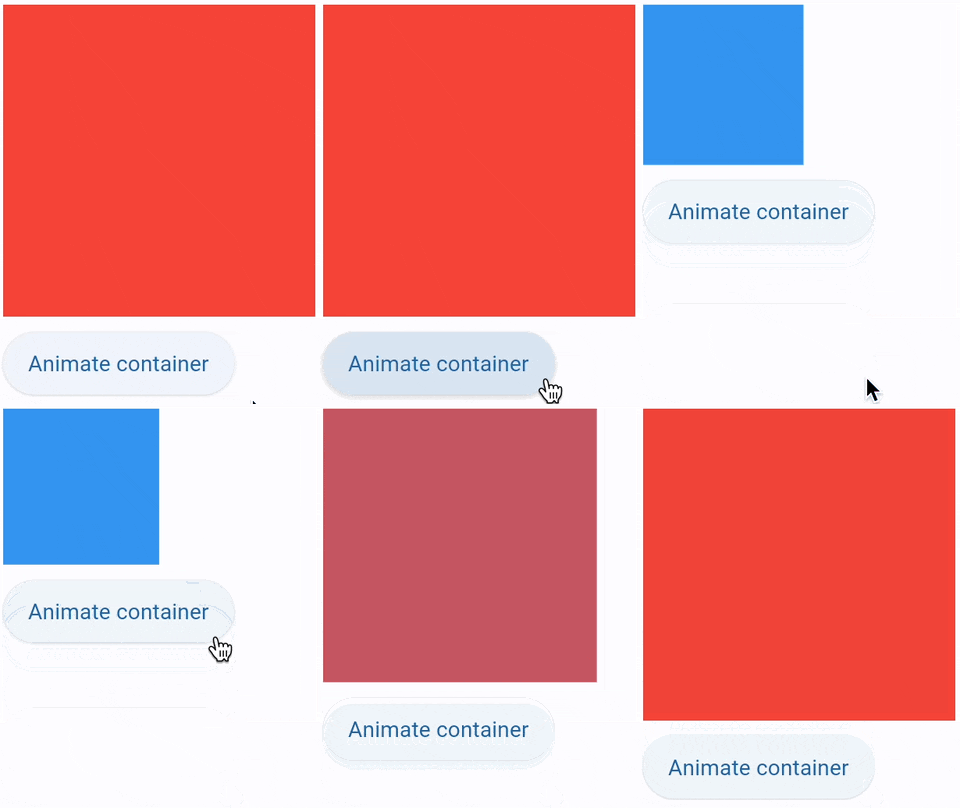
控件切换动画 (Animated content switcher)
AnimatedSwitcher 允许在两个控件(“新”控件和“旧”控件)之间进行带动画效果的过渡切换。
python
import time

import flet as ft

def main(page: ft.Page):
    i = ft.Image(src="https://picsum.photos/150/150", width=150, height=150)

    def animate(e):
        sw.content = ft.Image(
            src=f"https://picsum.photos/150/150?{time.time()}", width=150, height=150
        )
        page.update()

    sw = ft.AnimatedSwitcher(
        i,
        transition=ft.AnimatedSwitcherTransition.SCALE,
        duration=500,
        reverse_duration=500,
        switch_in_curve=ft.AnimationCurve.BOUNCE_OUT,
        switch_out_curve=ft.AnimationCurve.BOUNCE_IN,
    )

    page.add(
        sw,
        ft.Button("Animate!", on_click=animate),
    )

ft.run(main)
动画结束回调 (Animation end callback)
LayoutControl 还带有一个 on_animation_end 事件处理器,它会在动画播放结束时被触发调用。这可以用于实现多个动画链式依次播放的效果。
事件的 data 字段/属性包含了结束的动画类型名称:
"opacity""rotation""scale""offset""position""container"
例如:
python
ft.Container(
    content=ft.Text("Animate me!"),
    animate=ft.Animation(1000, ft.AnimationCurve.BOUNCE_OUT),
    on_animation_end=lambda e: print("Container animation end:", e.data)
)