
主题
Container 继承自:LayoutControl, AdaptiveControl, ActionControl, Control, BaseControl
允许用背景色和边框装饰控件,并通过内边距、外边距和对齐方式来定位它。
示例
python
import flet as ft


def main(page: ft.Page):
    page.title = "Container Example"
    page.theme_mode = ft.ThemeMode.LIGHT
    page.vertical_alignment = ft.MainAxisAlignment.CENTER
    page.horizontal_alignment = ft.CrossAxisAlignment.CENTER

    page.add(
        ft.SafeArea(
            content=ft.Row(
                alignment=ft.MainAxisAlignment.CENTER,
                controls=[
                    ft.Container(
                        margin=10,
                        padding=10,
                        alignment=ft.Alignment.CENTER,
                        bgcolor=ft.Colors.AMBER,
                        width=150,
                        height=150,
                        border_radius=10,
                        content=ft.Text("Non clickable"),
                    ),
                    ft.Container(
                        margin=10,
                        padding=10,
                        alignment=ft.Alignment.CENTER,
                        bgcolor=ft.Colors.GREEN_200,
                        width=150,
                        height=150,
                        border_radius=10,
                        on_click=lambda e: print("Clickable without Ink clicked!"),
                        content=ft.Text("Clickable without Ink"),
                    ),
                    ft.Container(
                        margin=10,
                        padding=10,
                        alignment=ft.Alignment.CENTER,
                        bgcolor=ft.Colors.CYAN_200,
                        width=150,
                        height=150,
                        border_radius=10,
                        ink=True,
                        on_click=lambda e: print("Clickable with Ink clicked!"),
                        content=ft.Text("Clickable with Ink"),
                    ),
                    ft.Container(
                        margin=10,
                        padding=10,
                        alignment=ft.Alignment.CENTER,
                        width=150,
                        height=150,
                        border_radius=10,
                        ink=True,
                        on_click=lambda e: print(
                            "Clickable transparent with Ink clicked!"
                        ),
                        content=ft.Text("Clickable transparent with Ink"),
                    ),
                ],
            )
        ),
    )


if __name__ == "__main__":
    ft.run(main)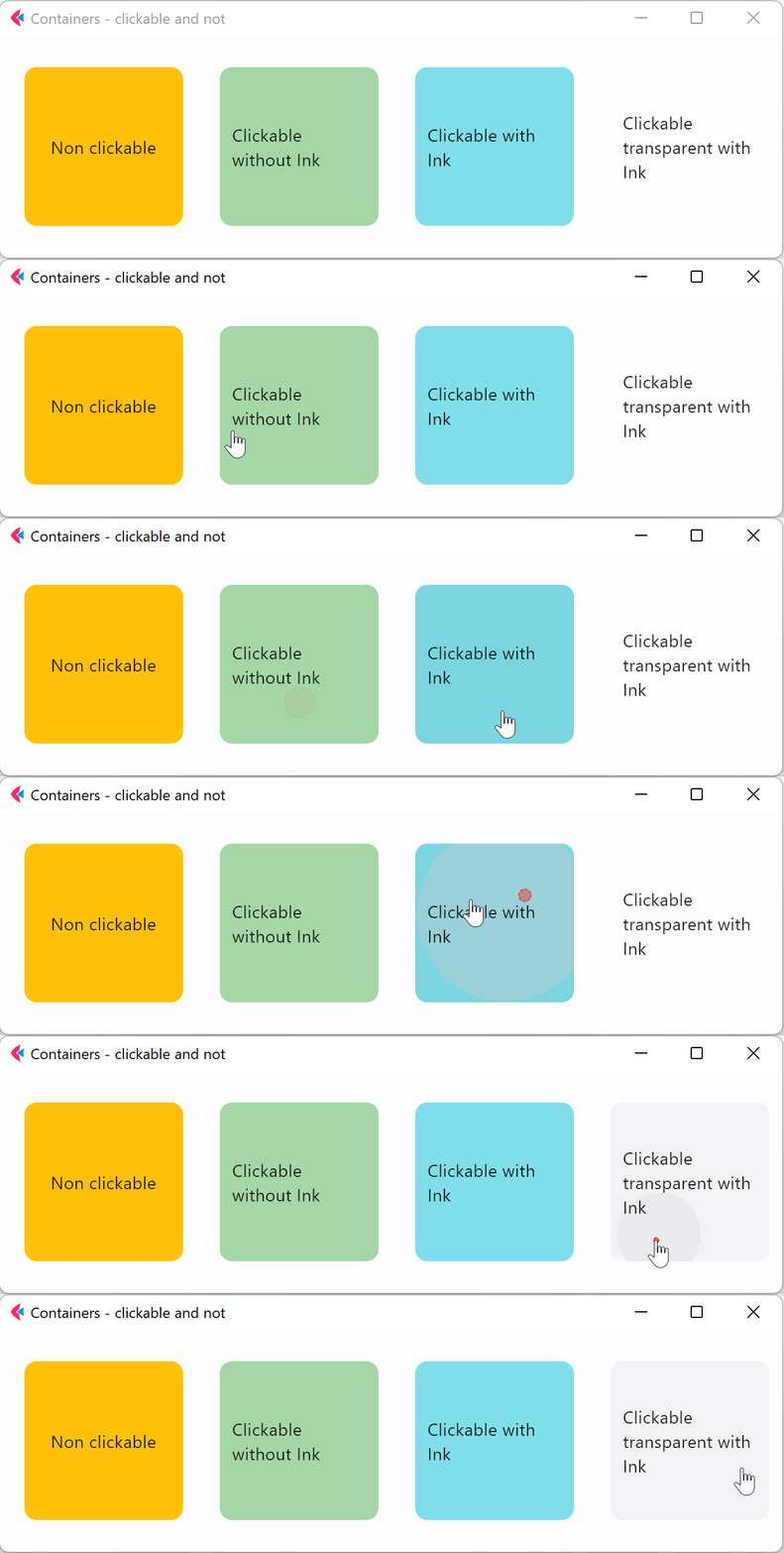
python
import flet as ft


def main(page: ft.Page):
    page.theme_mode = ft.ThemeMode.LIGHT
    page.vertical_alignment = ft.MainAxisAlignment.CENTER
    page.horizontal_alignment = ft.CrossAxisAlignment.CENTER
    lp_counter = 0
    cl_counter = 0
    td_counter = 0

    def on_click(e):
        nonlocal cl_counter
        cl_counter += 1
        t1.spans[-1] = ft.TextSpan(
            text=f"  {cl_counter}  ",
            style=ft.TextStyle(size=16, bgcolor=ft.Colors.TEAL_300),
        )
        t1.update()

    def on_long_press(e):
        nonlocal lp_counter
        lp_counter += 1
        t3.spans[-1] = ft.TextSpan(
            text=f"  {lp_counter}  ",
            style=ft.TextStyle(size=16, bgcolor=ft.Colors.TEAL_300),
        )
        t3.update()

    def on_tap_down(e):
        nonlocal td_counter
        td_counter += 1
        t2.spans[-1] = ft.TextSpan(
            text=f"  {td_counter}  ",
            style=ft.TextStyle(size=16, bgcolor=ft.Colors.TEAL_300),
        )
        t2.update()

    c = ft.Container(
        bgcolor=ft.Colors.PINK_900,
        alignment=ft.Alignment.CENTER,
        padding=ft.Padding.all(10),
        height=150,
        width=150,
        on_click=on_click,
        on_long_press=on_long_press,
        on_tap_down=on_tap_down,
        content=ft.Text(
            "Press Me!",
            text_align=ft.TextAlign.CENTER,
            style=ft.TextStyle(
                size=30,
                # weight=ft.FontWeight.BOLD,
                foreground=ft.Paint(
                    color=ft.Colors.BLUE_700,
                    stroke_cap=ft.StrokeCap.BUTT,
                    stroke_width=2,
                    stroke_join=ft.StrokeJoin.BEVEL,
                    style=ft.PaintingStyle.STROKE,
                ),
            ),
            theme_style=ft.TextThemeStyle.DISPLAY_MEDIUM,
        ),
    )
    t1 = ft.Text(
        spans=[
            ft.TextSpan(
                text="On Click", style=ft.TextStyle(size=16, weight=ft.FontWeight.BOLD)
            ),
            ft.TextSpan(text=" counter:  ", style=ft.TextStyle(size=16, italic=True)),
            ft.TextSpan(
                text=f"  {cl_counter}  ",
                style=ft.TextStyle(size=16, bgcolor=ft.Colors.TEAL_300),
            ),
        ]
    )
    t2 = ft.Text(
        spans=[
            ft.TextSpan(
                text="Tap Down", style=ft.TextStyle(size=16, weight=ft.FontWeight.BOLD)
            ),
            ft.TextSpan(text=" counter:  ", style=ft.TextStyle(size=16, italic=True)),
            ft.TextSpan(
                text=f"  {td_counter}  ",
                style=ft.TextStyle(size=16, bgcolor=ft.Colors.TEAL_300),
            ),
        ]
    )
    t3 = ft.Text(
        spans=[
            ft.TextSpan(
                text="Long Press",
                style=ft.TextStyle(size=16, weight=ft.FontWeight.BOLD),
            ),
            ft.TextSpan(text=" counter:  ", style=ft.TextStyle(size=16, italic=True)),
            ft.TextSpan(
                text=f"  {lp_counter}  ",
                style=ft.TextStyle(size=16, bgcolor=ft.Colors.TEAL_300),
            ),
        ]
    )

    page.add(ft.SafeArea(content=ft.Column(controls=[c, t1, t3, t2])))


if __name__ == "__main__":
    ft.run(main)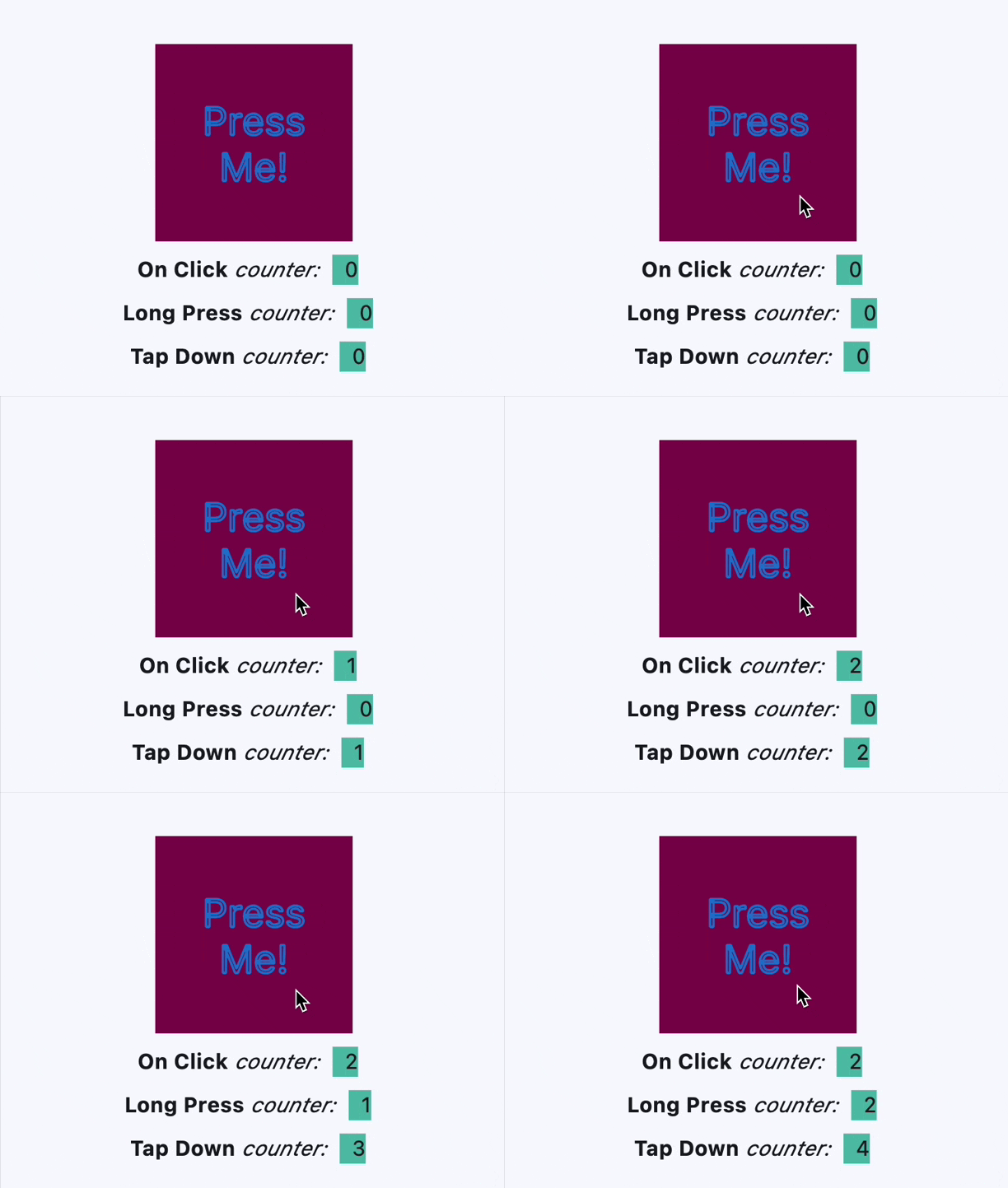
python
import flet as ft


def main(page: ft.Page):
    def handle_hover(e: ft.Event[ft.Container]):
        e.control.bgcolor = ft.Colors.BLUE if e.data else ft.Colors.RED
        e.control.update()

    page.add(
        ft.SafeArea(
            content=ft.Container(
                width=200,
                height=200,
                bgcolor=ft.Colors.RED,
                ink=False,
                on_hover=handle_hover,
            )
        )
    )


if __name__ == "__main__":
    ft.run(main)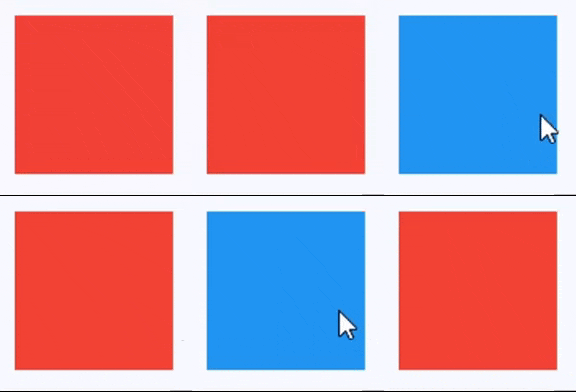
python
import flet as ft


def main(page: ft.Page):
    def animate_container(e: ft.Event[ft.Button]):
        container.width = 100 if container.width == 150 else 150
        container.height = 50 if container.height == 150 else 150
        container.bgcolor = (
            ft.Colors.BLUE if container.bgcolor == ft.Colors.RED else ft.Colors.RED
        )
        container.update()

    page.add(
        ft.SafeArea(
            content=ft.Column(
                controls=[
                    container := ft.Container(
                        width=150,
                        height=150,
                        bgcolor=ft.Colors.RED,
                        animate=ft.Animation(
                            duration=1000, curve=ft.AnimationCurve.BOUNCE_OUT
                        ),
                    ),
                    ft.Button("Animate container", on_click=animate_container),
                ]
            )
        ),
    )


if __name__ == "__main__":
    ft.run(main)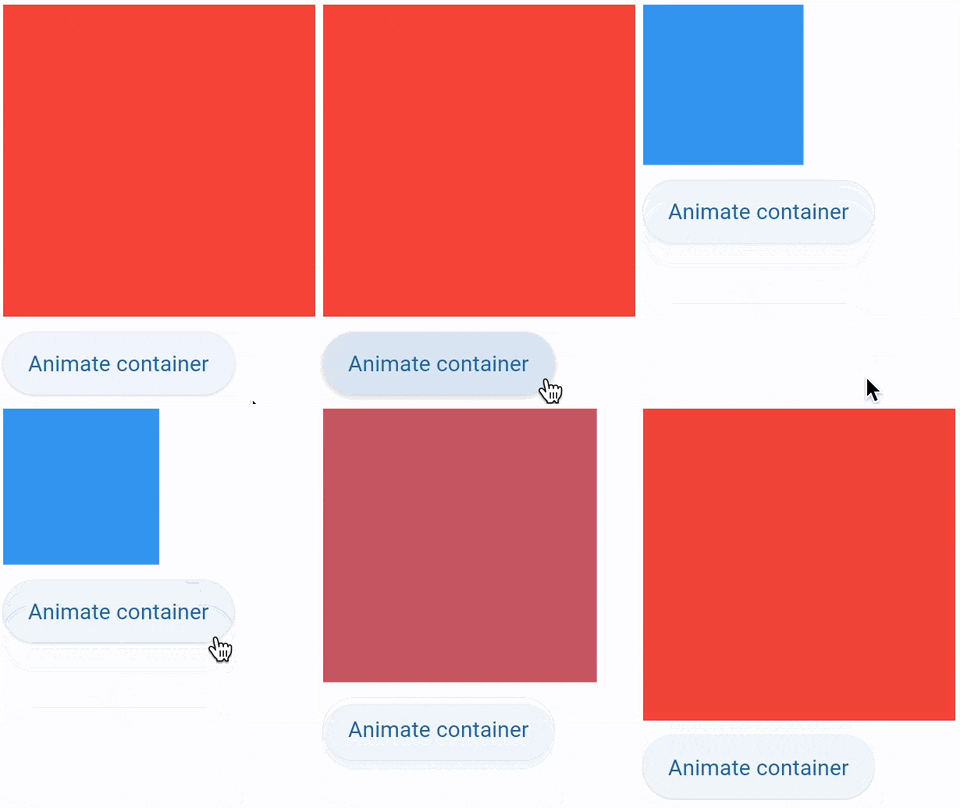
python
import flet as ft


def main(page: ft.Page):
    gradient1 = ft.LinearGradient(
        begin=ft.Alignment.TOP_CENTER,
        end=ft.Alignment.BOTTOM_CENTER,
        colors=[ft.Colors.GREEN, ft.Colors.BLUE],
        stops=[0.5, 1.0],
    )
    gradient2 = ft.RadialGradient(
        center=ft.Alignment.TOP_LEFT,
        radius=1.0,
        colors=[ft.Colors.YELLOW, ft.Colors.DEEP_ORANGE_900],
        tile_mode=ft.GradientTileMode.CLAMP,
    )

    message = ft.Text("Animate me!")

    def animate_container(e: ft.Event[ft.Button]):
        message.value = (
            "Animate me back!" if message.value == "Animate me!" else "Animate me!"
        )
        container.width = 150 if container.width == 250 else 250
        container.height = 150 if container.height == 250 else 250
        container.gradient = gradient2 if container.gradient == gradient1 else gradient1
        if container.alignment == ft.Alignment.TOP_LEFT:
            container.alignment = ft.Alignment.BOTTOM_RIGHT
        else:
            container.alignment = ft.Alignment.TOP_LEFT
        container.border_radius = 30 if container.border_radius == 10 else 10
        container.border = (
            ft.Border.all(width=2, color=ft.Colors.BLACK)
            if container.border == ft.Border.all(width=2, color=ft.Colors.BLUE)
            else ft.Border.all(width=2, color=ft.Colors.BLUE)
        )
        container.update()

    page.add(
        ft.SafeArea(
            content=ft.Column(
                controls=[
                    container := ft.Container(
                        width=250,
                        height=250,
                        gradient=gradient2,
                        alignment=ft.Alignment.TOP_LEFT,
                        animate=ft.Animation(
                            duration=1000, curve=ft.AnimationCurve.BOUNCE_OUT
                        ),
                        border=ft.Border.all(width=2, color=ft.Colors.BLUE),
                        border_radius=10,
                        padding=10,
                        content=message,
                    ),
                    ft.Button("Animate container", on_click=animate_container),
                ]
            )
        ),
    )


if __name__ == "__main__":
    ft.run(main)
python
import flet as ft


def main(page: ft.Page):
    def show_menu(e: ft.Event[ft.Button]):
        container.offset = ft.Offset(0, 0)
        container.update()

    def hide_menu(e: ft.Event[ft.IconButton]):
        container.offset = ft.Offset(-2, 0)
        container.update()

    page.overlay.append(
        container := ft.Container(
            left=10,
            top=10,
            width=200,
            height=300,
            bgcolor=ft.Colors.SURFACE_CONTAINER_HIGHEST,
            border_radius=5,
            offset=ft.Offset(-2, 0),
            animate_offset=ft.Animation(300, ft.AnimationCurve.EASE_IN),
            content=ft.Column(
                controls=[
                    ft.Row(
                        alignment=ft.MainAxisAlignment.END,
                        controls=[
                            ft.IconButton(icon=ft.Icons.CLOSE, on_click=hide_menu)
                        ],
                    ),
                    ft.ListTile(
                        title=ft.Text("Menu A"),
                        on_click=lambda _: print("Menu A clicked"),
                    ),
                    ft.ListTile(
                        title=ft.Text("Menu B"),
                        on_click=lambda _: print("Menu B clicked"),
                    ),
                ]
            ),
        )
    )

    page.add(ft.SafeArea(content=ft.Button("Show menu", on_click=show_menu)))


if __name__ == "__main__":
    ft.run(main)
python
import flet as ft


def main(page: ft.Page):
    # Yellow page theme with SYSTEM (default) mode
    page.theme = ft.Theme(
        color_scheme_seed=ft.Colors.YELLOW,
    )

    page.add(
        ft.SafeArea(
            content=ft.Column(
                controls=[
                    # Page theme
                    ft.Container(
                        bgcolor=ft.Colors.SURFACE_TINT,
                        padding=20,
                        width=300,
                        content=ft.Button("Page theme button"),
                    ),
                    # Inherited theme with primary color overridden
                    ft.Container(
                        theme=ft.Theme(
                            color_scheme=ft.ColorScheme(primary=ft.Colors.PINK)
                        ),
                        bgcolor=ft.Colors.SURFACE_TINT,
                        padding=20,
                        width=300,
                        content=ft.Button("Inherited theme button"),
                    ),
                    # Unique always DARK theme
                    ft.Container(
                        theme=ft.Theme(color_scheme_seed=ft.Colors.INDIGO),
                        theme_mode=ft.ThemeMode.DARK,
                        bgcolor=ft.Colors.SURFACE_TINT,
                        padding=20,
                        width=300,
                        content=ft.Button("Unique theme button"),
                    ),
                ]
            )
        ),
    )


if __name__ == "__main__":
    ft.run(main)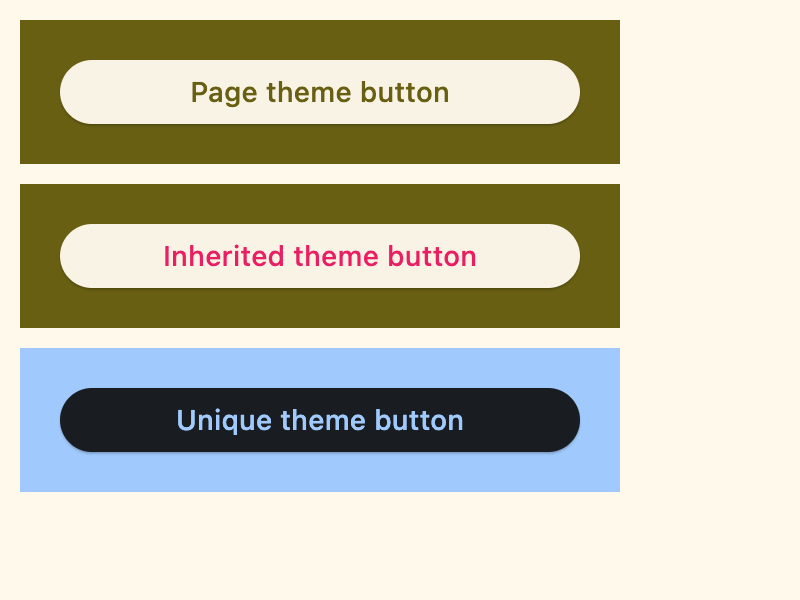
python
import flet as ft


def main(page: ft.Page):
    # page.theme = ft.Theme(
    #     color_scheme_seed=ft.Colors.YELLOW,
    #     color_scheme=ft.ColorScheme(
    #         primary=ft.Colors.GREEN, primary_container=ft.Colors.GREEN_200
    #     ),
    # )

    page.add(
        ft.SafeArea(
            content=ft.Column(
                controls=[
                    ft.Row(
                        controls=[
                            ft.Button("Page theme"),
                            ft.TextButton("Page theme text button"),
                            ft.Text(
                                "Text in primary container color",
                                color=ft.Colors.PRIMARY_CONTAINER,
                            ),
                        ]
                    ),
                    ft.Container(
                        height=100,
                        theme=ft.Theme(
                            color_scheme=ft.ColorScheme(primary=ft.Colors.PINK)
                        ),
                        content=ft.Row(
                            controls=[
                                ft.Button(
                                    "Inherited theme with primary color overridden"
                                ),
                                ft.TextButton("Button 2"),
                            ]
                        ),
                    ),
                    ft.Container(
                        padding=20,
                        bgcolor=ft.Colors.SURFACE_TINT,
                        theme_mode=ft.ThemeMode.DARK,
                        theme=ft.Theme(
                            color_scheme_seed=ft.Colors.GREEN,
                            color_scheme=ft.ColorScheme(
                                primary_container=ft.Colors.BLUE
                            ),
                        ),
                        content=ft.Row(
                            controls=[
                                ft.Button("Always DARK theme"),
                                ft.TextButton("Text button"),
                                ft.Text(
                                    "Text in primary container color",
                                    color=ft.Colors.PRIMARY_CONTAINER,
                                ),
                            ]
                        ),
                    ),
                    ft.Container(
                        padding=20,
                        bgcolor=ft.Colors.SURFACE_TINT,
                        border=ft.Border.all(3, ft.Colors.OUTLINE),
                        theme_mode=ft.ThemeMode.LIGHT,
                        theme=ft.Theme(),
                        content=ft.Row(
                            controls=[
                                ft.Button("Always LIGHT theme"),
                                ft.TextButton("Text button"),
                                ft.Text(
                                    "Text in primary container color",
                                    color=ft.Colors.PRIMARY_CONTAINER,
                                ),
                            ]
                        ),
                    ),
                ]
            )
        )
    )


if __name__ == "__main__":
    ft.run(main)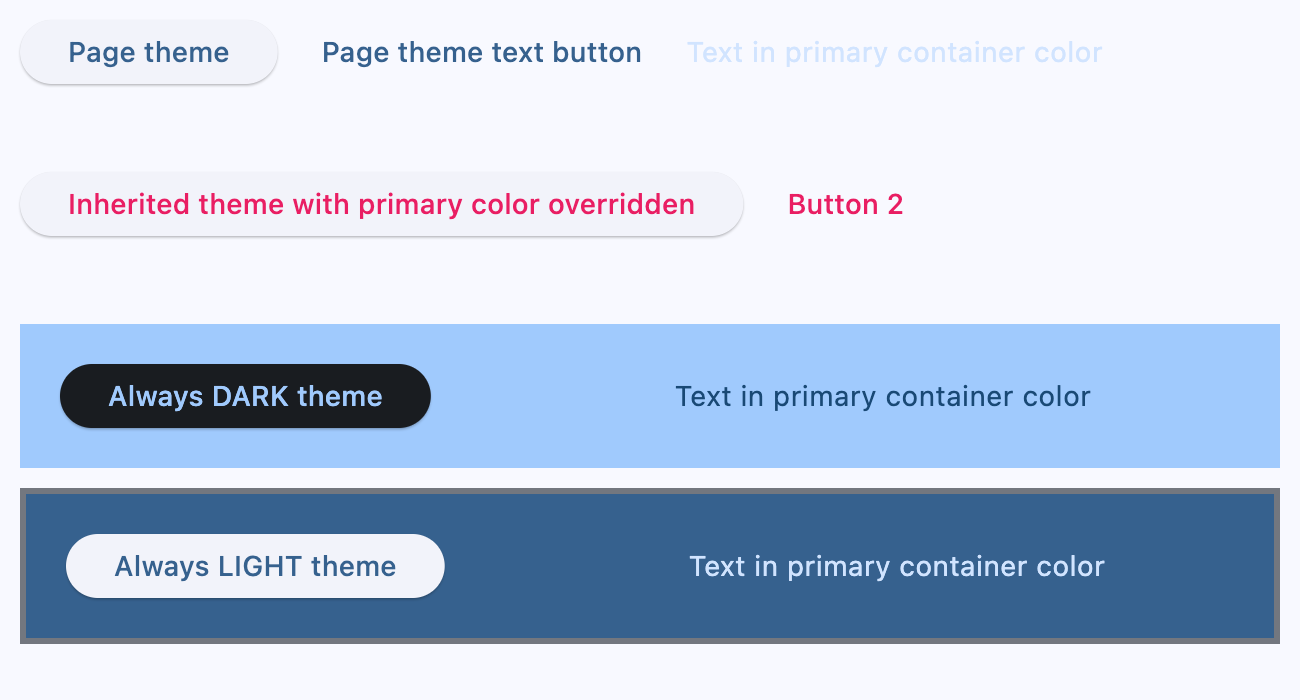
python
import flet as ft


def main(page: ft.Page):
    page.theme_mode = ft.ThemeMode.DARK

    def handle_switch_change(e: ft.Event[ft.Switch]):
        if page.theme_mode == ft.ThemeMode.DARK:
            page.theme_mode = ft.ThemeMode.LIGHT
            switch.thumb_icon = ft.Icons.LIGHT_MODE
        else:
            switch.thumb_icon = ft.Icons.DARK_MODE
            page.theme_mode = ft.ThemeMode.DARK
        page.update()

    # Yellow page theme with SYSTEM (default) mode
    page.theme = ft.Theme(color_scheme_seed=ft.Colors.YELLOW)

    switch = ft.Switch(thumb_icon=ft.Icons.DARK_MODE, on_change=handle_switch_change)

    page.add(
        ft.SafeArea(
            content=ft.Column(
                controls=[
                    # Page theme
                    ft.Row(
                        alignment=ft.MainAxisAlignment.SPACE_BETWEEN,
                        controls=[
                            ft.Container(
                                bgcolor=ft.Colors.SURFACE_TINT,
                                padding=20,
                                width=300,
                                content=ft.Button("Page theme button"),
                            ),
                            ft.Container(
                                padding=ft.Padding.only(bottom=50),
                                alignment=ft.Alignment.TOP_RIGHT,
                                content=switch,
                            ),
                        ],
                    ),
                    # Inherited theme with primary color overridden
                    ft.Container(
                        theme=ft.Theme(
                            color_scheme=ft.ColorScheme(primary=ft.Colors.PINK)
                        ),
                        bgcolor=ft.Colors.SURFACE_TINT,
                        padding=20,
                        width=300,
                        content=ft.Button("Inherited theme button"),
                    ),
                    # Unique always DARK theme
                    ft.Container(
                        theme=ft.Theme(color_scheme_seed=ft.Colors.INDIGO),
                        theme_mode=ft.ThemeMode.DARK,
                        bgcolor=ft.Colors.SURFACE_TINT,
                        padding=20,
                        width=300,
                        content=ft.Button("Unique theme button"),
                    ),
                ]
            )
        ),
    )


if __name__ == "__main__":
    ft.run(main)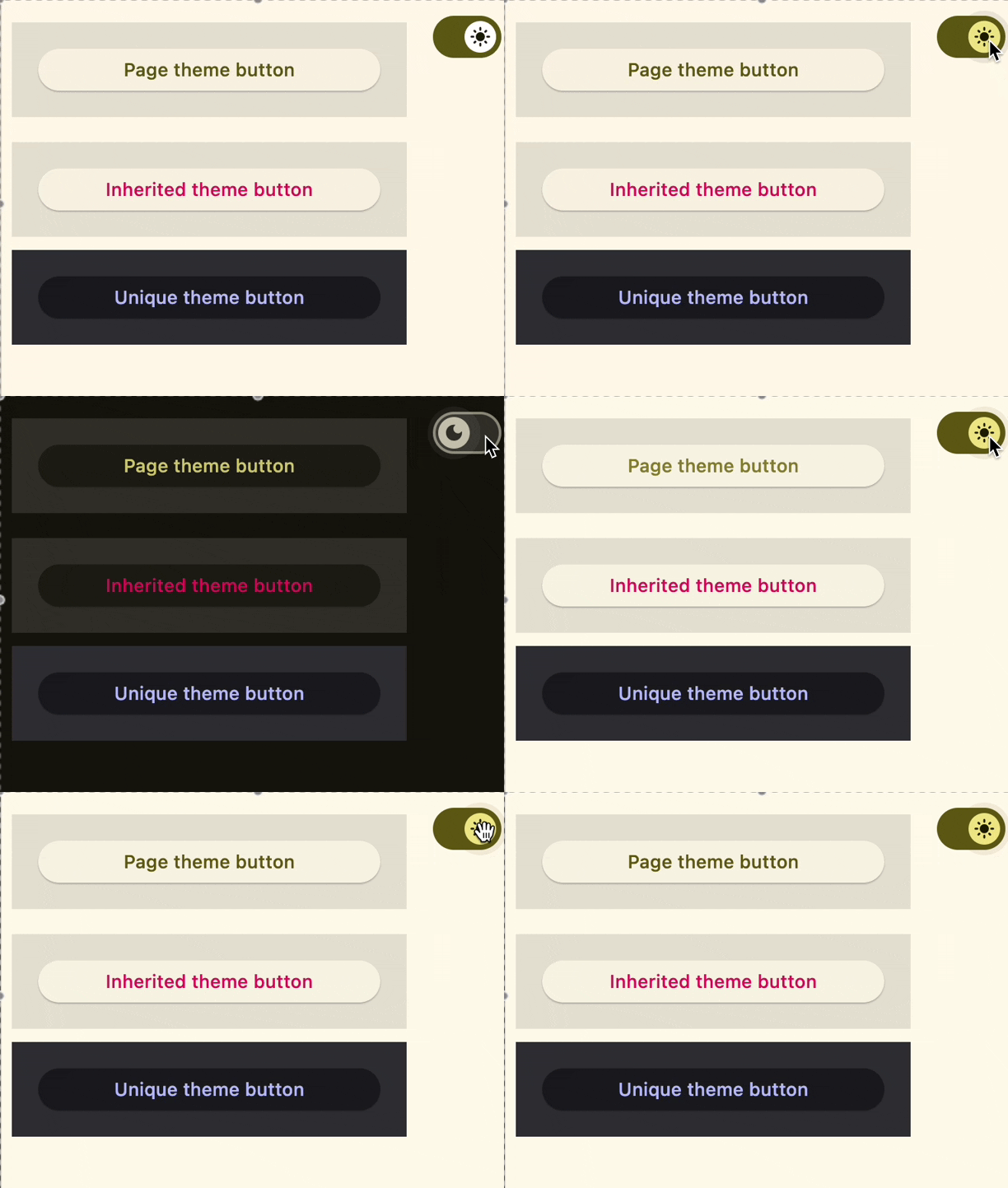
python
import flet as ft


def main(page: ft.Page):
    def handle_size_change(e: ft.LayoutSizeChangeEvent[ft.Container]):
        e.control.content.value = f"{int(e.width)} x {int(e.height)}"

    page.add(
        ft.SafeArea(
            expand=True,
            content=ft.Container(
                expand=True,
                alignment=ft.Alignment.CENTER,
                bgcolor=ft.Colors.BLUE_ACCENT,
                size_change_interval=100,
                on_size_change=handle_size_change,
                content=ft.Text(color=ft.Colors.WHITE, weight=ft.FontWeight.BOLD),
            ),
        )
    )


if __name__ == "__main__":
    ft.run(main)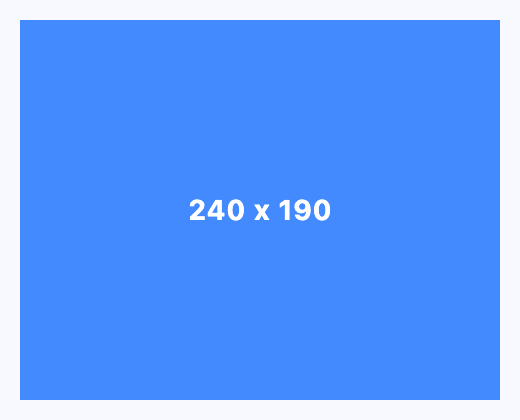
属性
| 名称 | 类型 | 默认值 | 说明 |
|---|---|---|---|
content | Optional[Control] | None | 此容器的内容。 |
padding | Optional[PaddingValue] | None | 在容器装饰(背景、边框)内部留出的空白。子控件会被放置在该内边距之内。 |
alignment | Optional[Alignment] | None | 定义 content 在此容器内的对齐方式。 注意: 如果 alignment 不为 None,此容器可能会扩展以填满父级提供的可用空间(然后按其自身的 alignment 定位 content),而不是收缩到其 content 大小。如果你需要此容器保持固定尺寸,请给它显式设置 width 和/或 height,或通过其父级加以约束。 |
bgcolor | Optional[ColorValue] | None | 定义此容器的背景色。 |
gradient | Optional[Gradient] | None | 定义此容器的渐变背景。 |
blend_mode | Optional[BlendMode] | None | 应用于容器 color 或 gradient 背景的混合模式。 默认为 BlendMode.MODULATE。 |
border | Optional[Border] | None | 绘制在背景色之上的边框。 |
border_radius | Optional[BorderRadiusValue] | None | 此容器的圆角半径。 |
shape | BoxShape | BoxShape.RECTANGLE | 设置此容器的形状。 |
clip_behavior | Optional[ClipBehavior] | None | 定义 content 的裁剪方式。 如果 border_radius 不为 None,默认为 ClipBehavior.ANTI_ALIAS;否则为 ClipBehavior.NONE。 |
ink | bool | False | 设为 True 时,用户点击此容器会产生墨水涟漪(ink ripple)效果。 |
image | Optional[DecorationImage] | None | 绘制在 bgcolor 或 gradient 之上的图片。如果 shape=BoxShape.CIRCLE,则此图片会被裁剪到圆形边界;如果 border_radius 不为 None,则图片会被裁剪到给定的圆角。 |
ink_color | Optional[ColorValue] | None | 墨水响应的飞溅(splash)颜色。 |
animate | Optional[AnimationValue] | None | 启用容器的「隐式」动画,在指定时间段内逐步改变其值。 |
blur | Optional[BlurValue] | None | 定义应如何在此容器下方应用高斯模糊效果。 示例: python ft.Stack( controls=[ ft.Container( content=ft.Text("Hello"), image_src="https://picsum.photos/100/100", width=100, height=100, ), ft.Container( width=50, height=50, blur=10, bgcolor="#44CCCC00", ), ft.Container( width=50, height=50, left=10, top=60, blur=(0, 10), ), ft.Container( top=10, left=60, blur=ft.Blur(10, 0, ft.BlurTileMode.MIRROR), width=50, height=50, bgcolor="#44CCCCCC", border=ft.Border.all(2, ft.Colors.BLACK), ), ] ) |
shadow | Optional[BoxShadowValue] | None | 此容器下方的一个或多个阴影。 |
url | Optional[Union[str, Url]] | None | 点击此容器时要打开的 URL。 此外,如果提供了 on_click 回调,它会在其后触发。 |
theme | Optional['Theme'] | None | 允许为此容器内部及其控件树下方的所有控件设置嵌套主题。 |
dark_theme | Optional['Theme'] | None | 允许设置一个嵌套主题,在深色主题模式下用于容器内部及其控件树下方的所有控件。 |
theme_mode | Optional[ThemeMode] | None | 「重置」父主题,并为容器内的所有控件创建新的独立配色方案。否则,容器 theme 属性中定义的样式会覆盖继承自父级的对应样式。 默认为 ThemeMode.SYSTEM。 |
color_filter | Optional[ColorFilter] | None | 对此容器应用颜色滤镜。 |
ignore_interactions | bool | False | 是否忽略与此容器及其所有子控件的交互。 |
foreground_decoration | Optional[BoxDecoration] | None | 此容器的前景装饰。 |
width | Optional[Number] | None | 控件的强制宽度(以虚拟像素为单位)。 |
height | Optional[Number] | None | 控件的强制高度(以虚拟像素为单位)。 |
left | Optional[Number] | None | 子控件左边缘相对于 Stack 左侧的内缩距离。 注意: 仅当此控件是以下之一的后代时才生效: Stack 控件、overlay 列表。 |
top | Optional[Number] | None | 子控件上边缘相对于 Stack 顶部的内缩距离。 注意: 仅当此控件是以下之一的后代时才生效: Stack 控件、overlay 列表。 |
right | Optional[Number] | None | 子控件右边缘相对于 Stack 右侧的内缩距离。 注意: 仅当此控件是以下之一的后代时才生效: Stack 控件、overlay 列表。 |
bottom | Optional[Number] | None | 子控件下边缘相对于 Stack 底部的内缩距离。 注意: 仅当此控件是以下之一的后代时才生效: Stack 控件、overlay 列表。 |
align | Optional[Alignment] | None | 控件在其父级中的对齐方式。 |
margin | Optional[MarginValue] | None | 设置控件的外边距。 |
rotate | Optional[RotateValue] | None | 围绕控件中心旋转来变换此控件。 rotate 属性的值可以是以下类型之一: * number —— 顺时针旋转的弧度值。整圈 360° 为 math.pi * 2 弧度,90° 为 pi / 2,45° 为 pi / 4,以此类推。 * Rotate —— 允许同时指定旋转 angle 和 alignment,即旋转中心的位置。 示例: python ft.Image( src="https://picsum.photos/100/100", width=100, height=100, border_radius=5, rotate=Rotate(angle=0.25 * pi, alignment=ft.Alignment.CENTER_LEFT) ) |
scale | Optional[ScaleValue] | None | 沿二维平面缩放此控件。默认缩放因子为 1.0,表示不缩放。 例如,将此属性设为 0.5 会让控件缩小一半,而设为 2.0 则会放大一倍。 通过将 Control.scale 属性设为 Scale 类的实例,可以为 x 和 y 轴指定不同的缩放倍数。可以指定 scale,或者指定 scale_x 和 scale_y,但不能同时指定全部。 示例: python ft.Image( src="https://picsum.photos/100/100", width=100, height=100, border_radius=5, scale=ft.Scale(scale_x=2, scale_y=0.5) ) |
offset | Optional[OffsetValue] | None | 在绘制控件之前应用平移变换。 平移量表示为按控件尺寸缩放的 Offset。例如,Offset(x=0.25, y=0) 会使控件沿水平方向平移其宽度的四分之一。 示例 下面的示例把容器显示在 Stack 的 0, 0 左上角,因为变换对控件应用了 -1 * 100, -1 * 100(即 offset * control's size)的水平与垂直平移: python import flet as ft def main(page: ft.Page): page.add( ft.Stack( width=1000, height=1000, controls=[ ft.Container( bgcolor=ft.Colors.RED, width=100, height=100, left=100, top=100, offset=ft.Offset(-1, -1), ) ], ) ) ft.run(main) |
flip | Optional[Flip] | None | 水平方向和/或垂直翻转此控件。 设为 Flip 的实例即可沿 x 轴、y 轴或两者镜像翻转。 |
transform | Optional[Transform] | None | 对此控件应用通用矩阵变换。 设为带 Matrix4 记录的 Transform 实例,用以描述任意的变换序列。 |
aspect_ratio | Optional[Number] | None | 控件的宽高比,定义为 width 与 height 的比值。 注意: 在当前实现中,如果设置了 aspect_ratio,同一控件上的 width 和 height 将在最终渲染尺寸中被忽略。 |
animate_opacity | Optional[AnimationValue] | None | 启用 opacity 属性的隐式动画。 更多信息见此处。 |
animate_size | Optional[AnimationValue] | None | 启用此控件尺寸的隐式动画。 如果设置了 width 或 height,则这些维度的变化会以动画呈现。如果两者都未设置,则对控件自然尺寸的变化进行动画。 更多信息见此处。 |
animate_position | Optional[AnimationValue] | None | 启用定位属性(left、right、top 和 bottom)的隐式动画。 更多信息见此处。 |
animate_align | Optional[AnimationValue] | None | 启用 align 属性的隐式动画。 更多信息见此处。 |
animate_margin | Optional[AnimationValue] | None | 启用 margin 属性的隐式动画。 更多信息见此处。 |
animate_rotation | Optional[AnimationValue] | None | 启用 rotate 属性的隐式动画。 更多信息见此处。 |
animate_scale | Optional[AnimationValue] | None | 启用 scale 属性的隐式动画。 更多信息见此处。 |
animate_offset | Optional[AnimationValue] | None | 启用 offset 属性的隐式动画。 更多信息见此处。 |
size_change_interval | int | 10 | on_size_change 事件的采样间隔(毫秒)。 设为 0 时,每次变化都会立即调用 on_size_change。 |
expand | Annotated[Optional[Union[bool, int]], V.instance_of((bool, int))] | None | 指定此控件是否/如何扩展以填满父布局中的可用空间。 更多信息见此处。 注意: 仅当此控件的直接父级是以下控件或其子类时才生效:Column、Row、View、Page。 抛出异常: ValueError:如果它不是 bool 或 int 类型。 |
expand_loose | bool | False | 允许控件在主轴方向有可用空间时扩展,但不要求它填满所有可用空间。 更多信息见此处。 注意: 如果 expand_loose 为 True,则仅在以下条件满足时才生效: - expand 不为 None,且 - 此控件的直接父级是以下控件或其子类之一:Column、Row、View、Page。 |
col | ResponsiveNumber | 12 | 如果此控件的父级是 ResponsiveRow,则此属性决定该控件在屏幕上跨越多少虚拟列。 可以是一个数字,也可以是一个按断点配置不同值的字典,例如 col={"sm": 6}。 值为 0 时会在该断点隐藏控件,因此它不会占用父级 ResponsiveRow 中的任何列。 此控件默认跨越 12 个虚拟列。 | 断点 | 尺寸 | |---|---| | xs | <576px | | sm | ≥576px | | md | ≥768px | | lg | ≥992px | | xl | ≥1200px | | xxl | ≥1400px | |
opacity | Annotated[Number, V.between(0.0, 1.0)] | 1.0 | 定义控件的透明度。 取值范围从 0.0(完全透明)到 1.0(完全不透明,无任何透明感)。 抛出异常: ValueError:如果它不在 0.0 到 1.0(含)之间。 |
tooltip | Optional[TooltipValue] | None | 鼠标悬停在此控件上时显示的工具提示。 |
badge | Optional[BadgeValue] | None | 显示在此控件顶部的徽章。 |
visible | bool | True | 每个控件都有 visible 属性,默认为 True —— 控件会渲染在页面上。将 visible 设为 False 会彻底阻止控件(及其所有子控件,如果有)渲染到页面画布上。隐藏的控件无法通过键盘或鼠标获得焦点或选中,也不会触发任何事件。 |
disabled | bool | False | 每个控件都有 disabled 属性,默认为 False —— 控件及其所有子控件都处于启用状态。 注意: 此属性的值会递归向下传播到所有子控件。 示例: 例如,如果你有一个包含多个输入控件的表单,可以通过禁用容器来一并禁用它们: python ft.Column( disabled = True, controls=[ ft.TextField(), ft.TextField() ] ) |
rtl | bool | False | 控件的文本方向是否为从右到左(RTL)。 |
data | Any | skip_ | 任意类型的自定义数据。 |
key | Optional['KeyValue'] | None | 用于在更新之间保持控件标识稳定的键。 |
adaptive | Optional[bool] | None | 启用平台特定渲染,或从父控件继承自适应能力。 |
action | Optional[Union[ClientAction, list[ClientAction]]] | None | 当此控件被激活时,由客户端执行的动作,无需往返到你的 Python 代码。 可用于浏览器仅在处理用户点击时才允许的操作,例如打开文件选择器、写入剪贴板、显示分享面板或打开新标签页。见 ClientAction。 |
只读属性
| 名称 | 类型 | 默认值 | 说明 |
|---|---|---|---|
parent | Optional['BaseControl'] | — | 此控件的直接祖先(父级)。 默认为 None,只有在此控件被挂载(加入页面树)后才有值。 Page 控件(页面树的根)是个例外 —— 它的 parent 始终为 None。 |
page | 'Page' | — | 此控件所属的页面。 |
事件
| 名称 | 类型 | 默认值 | 说明 |
|---|---|---|---|
on_click | Optional[ControlEventHandler['Container']] | None | 用户点击容器时调用。 如果此容器被长按,则不会调用。 |
on_tap_down | Optional[EventHandler[TapEvent['Container']]] | None | 用户在长按或不长按的情况下点击容器时调用。 |
on_long_press | Optional[ControlEventHandler['Container']] | None | 此容器被长按时调用。 |
on_hover | Optional[ControlEventHandler['Container']] | None | 鼠标指针进入或离开容器区域时调用。 事件处理器参数的 data 属性为布尔值:光标进入此容器时为 True,离开时为 False。 |
on_size_change | Optional[EventHandler[LayoutSizeChangeEvent['LayoutControl']]] | None | 当此控件的尺寸发生变化时调用。 size_change_interval 定义此事件的调用频率。 |
on_animation_end | Optional[ControlEventHandler['LayoutControl']] | None | 动画完成时调用。 可用于串联多个动画。 事件处理器参数的 data 属性包含动画名称。 更多信息见此处。 |
方法
| 名称 | 类型 | 默认值 | 说明 |
|---|---|---|---|
init | — | — | — |
is_isolated | — | — | 返回此控件是否被标记为隔离。 隔离控件会被排除在父级驱动的更新遍历之外,并需要自行管理更新边界。 |
build | — | — | 在控件初始化期间调用一次,用于定义其子控件。在此方法中 page 属性可用。 |
before_update | — | — | 每当此控件被更新时都会调用此方法。 注意: 务必不要在此处调用或请求 update()。 |
before_event | — | — | 在事件处理器执行之前拦截事件。 返回 False 可取消分发。返回 True 或 None 则继续正常的事件处理。 |
did_mount | — | — | 在控件挂载到页面树之后调用。 重写此方法以启动需要已挂载页面的资源,例如订阅、定时器或服务监听器。 |
will_unmount | — | — | 在控件从页面树移除之前调用。 重写此方法以释放 did_mount() 中创建的资源,例如订阅、定时器或外部句柄。 |
get_data_channel | — | — | 解析为此 widget 在 Dart 侧分配的 [DataChannel]。模式: on_data_channel_open: Optional[ft.EventHandler[DataChannelOpenEvent]] = None def init(self): self.on_data_channel_open = self._on_open def _on_open(self, e): self._channel = self.get_data_channel(e.channel_id) 幂等 —— 底层的 Connection 会按 id 缓存 DataChannel,因此重复调用会返回同一实例。没有错误路径:该 id 始终来自框架触发的事件,所以当此方法运行时,通道在两端都已存在。 |
update | None | — | 为此控件请求一次 UI 更新。 在更改控件状态或属性后调用。控件必须已挂载到页面且未被标记为冻结。 |